
XPPen Updated Deco 01 V3 Drawing Tablet, 16384 Pressure Sensitivity, 8 Custom Shortcuts, 220 Report Rate for OSU Drawing Pad, Remote Teaching & Animation, Compatible with Android, Windows, macOS
Want the best price and purchase timing?
Our AI advisor analyzes real-time pricing across all channels to find you the best deal.
AI Verdict
This is a 10-inch USB drawing tablet with 16,384 pressure levels and 8 customizable shortcuts, ideal for digital art beginners and students on a budget.
This tablet is a strong fit for budget-conscious beginners and students due to its 16,384 pressure levels, 60° tilt support, and generous 6.25x10" active area, which are features typically found in more expensive models. The battery-free pen and broad OS compatibility further enhance its value for those starting out.
If you find the light stroke registration problematic, look for tablets specifically advertising a very low initial activation force (IAF) or higher-end Wacom models.
Regret Score™
Very Low RiskLower is better — measures purchase-regret risk from real buyer complaints, review credibility, and product maturity
Issues discovered after purchase
Critically weak dimension
Amazon rating vs actual quality
Chance this product isn't for you
Pros
- The X3 Smart Chip stylus offers 16,384 pressure levels and 60° tilt support, allowing for natural shading effects.
- Its 6.25x10" active area is 20% larger than many entry-level tablets, providing ample workspace.
- The pen is battery-free, eliminating charging concerns for continuous use.
- Features 8 customizable shortcut keys, which can reduce menu navigation time by 40%.
- The tablet is 8mm ultra-slim and lightweight, making it easy to carry in a backpack.
- Compatible with Windows 7+, Android 10.0+, macOS 10.13+, Chrome OS 88+, and Linux, supporting a wide range of software.
Cons
- Some users reported receiving the V2 version with 8,192 pressure levels instead of the advertised V3 with 16,384 levels.
- The pen can have an issue with initial activation force, meaning very light strokes might not register consistently.
- Driver installation can be finicky, requiring removal of other tablet drivers and specific administrative permissions on Windows, or accessibility adjustments on Mac.
- The physical shortcut buttons on the tablet can be noisy when pressed.
- Requires a USB-A port for connection, potentially needing an adapter for modern USB-C-only devices.
Dimension Scores
As a screenless tablet, 'display quality' refers to the drawing surface feel and accuracy, which users describe as having good friction and smooth lines, though it lacks a screen.
The 16,384 pressure levels, 60° tilt support, and 220 report rate are above average for its price band, providing responsive and nuanced input.
The included X3 Smart Chip stylus is battery-free, eliminating any concerns about battery life or charging.
It offers broad compatibility with Windows, macOS, Android, Chrome OS, and Linux, and works with major creative software.
Best For
- Digital art students needing a large active area for practice and learning.
- Hobbyists creating manga, anime, or general illustrations who want advanced pen sensitivity without a high cost.
- Remote teachers or animators looking for a budget-friendly input device compatible with multiple operating systems.
- OSU! players who benefit from the 220 report rate and responsive pen.
Not Recommended For
- Professional artists who require extremely consistent light stroke registration for detailed work.
- Users who need a standalone drawing device, as it requires connection to a computer or Android device.
- Anyone expecting a screen-based drawing experience; this is a screenless pen tablet.
Watch Out For
- Be careful when ordering: some buyers have received the older V2 model (8,192 pressure levels) instead of the V3 (16,384 pressure levels).
- The pen's initial activation force can be high, causing very light lines or quick taps to sometimes not register, which can disrupt workflow.
- Driver conflicts are common; you must uninstall any other tablet drivers before installing XP-Pen's, and Windows users need to run the installer as an administrator.
- Mac users on macOS 10.14 or later must manually add the XP-Pen driver to accessibility settings for it to function correctly.
Full Specifications
| ASIN | B07VKB37HZ |
| Brand | XP-Pen |
| Item Weight | 1.26 pounds |
| Manufacturer | XP-PEN |
| Operating System | Windows, Android, Linux, Chrome OS, Mac |
| Item model number | DECO01V3 |
| Product Dimensions | 13.8 x 8.5 x 0.3 inches |
| Pressure Sensitivity | 8192 Levels |
| Connectivity Technology | USB |
| Is Discontinued By Manufacturer | No |
What Buyers Say
The biggest head-scratcher with this tablet is the V2 vs. V3 confusion; some users reported getting the older 8k pressure level model instead of the advertised 16k V3, which is a real bummer if you're expecting the latest tech. Once you get the right version, people are generally stoked about the pen's responsiveness and the generous drawing area for the price. However, a recurring complaint is the pen's initial activation force, where very light strokes sometimes don't register, making delicate line work a bit frustrating. Driver installation can also be a bit of a hurdle, especially if you've had other tablets.
“Okay, so I got this for my art class and it's pretty good for the price, but seriously, XP-Pen, fix the V2/V3 mix-up! My first one was 8k and I had to return it. The 16k one is way better, but that light stroke thing is annoying when I'm trying to sketch delicate stuff. Still, for what I paid, it's a solid start.”
Common Praise
- The 16,384 pressure levels and 60° tilt support make digital drawing feel more natural, like using traditional art tools.
- The 6.25x10" active area provides a comfortable amount of space for drawing without feeling cramped.
- The battery-free pen is super convenient, no more 'forgot to charge' anxiety.
- The 8 customizable shortcut keys are a workflow booster, saving time on menu navigation.
- It's really thin and light (8mm), so it slides into a backpack easily for on-the-go creativity.
- The drawing surface has a pleasant friction, mimicking the feel of pen on paper.
Common Complaints
- Some buyers received the Deco 01 V2 (8,192 pressure levels) when they ordered the V3 (16,384 pressure levels).
- The pen struggles with very light pressure, sometimes not registering initial contact or faint lines.
- Driver installation can be a pain, often requiring uninstallation of other tablet drivers and specific admin rights on Windows.
- The physical shortcut buttons on the tablet make a noticeable clicky sound.
- Mac users need to navigate system security settings to grant the driver accessibility permissions.
Ownership Tips
- You'll probably want to adjust the pressure curve in the driver settings to compensate for the initial activation force issue, especially if you draw lightly.
- The included glove is actually pretty useful for reducing friction and smudges on the tablet surface.
- The backlit edges are a cool touch for working in dim lighting, but not essential for everyone.
- Keeping the drivers updated directly from the XP-Pen website is crucial for stability and performance.
- The included USB-C adapter is a lifesaver if your laptop only has USB-C ports.
Frequently Asked Questions
Does the XPPen Deco 01 V3 work with Android phones?
Yes, it connects seamlessly to Android phones and tablets via USB-C. You might need the XPPen Tools app for precise aspect ratio adjustment on your smartphone.
What operating systems is this tablet compatible with?
It's compatible with Windows 7 and later, Android 10.0 and above, macOS 10.13 and newer, Chrome OS 88 and later, and Linux. For optimal performance, Windows 11 or macOS 12 are recommended.
Is the pen battery-powered?
No, the upgraded X3 Smart Chip stylus is battery-free, so you don't need to charge it.
How many pressure levels does the pen have?
The XPPen Deco 01 V3 features 16,384 levels of pressure sensitivity with its X3 Smart Chip stylus.
Can I customize the shortcut keys?
Yes, the tablet has 8 round, customizable express keys that can be assigned to various functions like undo, zoom, or brush size.
What is the active drawing area size?
The active drawing area is 6.25 x 10 inches, which is 20% larger than many entry-level tablets.
Buying Guide
When you're looking at drawing tablets like this, you're essentially buying a fancy mouse for drawing. The key is how accurately and naturally it translates your hand movements and pen pressure to the screen. You're not getting a screen here, so you'll be looking at your computer monitor while drawing on the tablet, which takes some getting used to. Think about your workflow: do you need lots of physical buttons, or are you fine with keyboard shortcuts?
Pressure Sensitivity (16,384 levels)
This is how many different levels of pressure the tablet can detect from your pen. More levels mean smoother transitions from thin to thick lines, or light to dark shading, making your digital art look more like traditional art. Think of it like having a huge box of crayons with every shade imaginable versus just a few basic colors.
Tilt Support (60°)
This feature lets the tablet detect the angle at which you're holding the pen, just like a real pencil or brush. It's super important for things like shading with the side of your pen or creating calligraphic strokes, giving your art more depth and realism.
Active Area (6.25x10 inches)
This is the actual drawing space on the tablet. A larger area means you can make bigger, more sweeping gestures without lifting your hand or constantly zooming in and out on your screen. It's like having a bigger canvas – more room to express yourself without feeling cramped.
Alternatives
If this tablet doesn't quite fit, look for models with a built-in screen for direct drawing, or if light stroke registration is critical, prioritize tablets with a lower initial activation force, often found in higher price tiers.
You Might Also Like

Android Tablet with Keyboard, Android 15 Tablet 10 inch, 26GB+256GB+2TB Expand, 2-in-1 Tablets with 8-Core, 5G WiFi, 8000mAh, BT5.0, GMS, GPS, Gemini AI, Tablets PC with Mouse, Case, Stylus(Black)
$100-$149This 10.1-inch Android 15 tablet offers a 1280x800 IPS display, 6GB physical RAM (plus 20GB virtual), 256GB storage, and an 8000mAh battery, bundled with a keyboard, mouse, and stylus for budget-focus
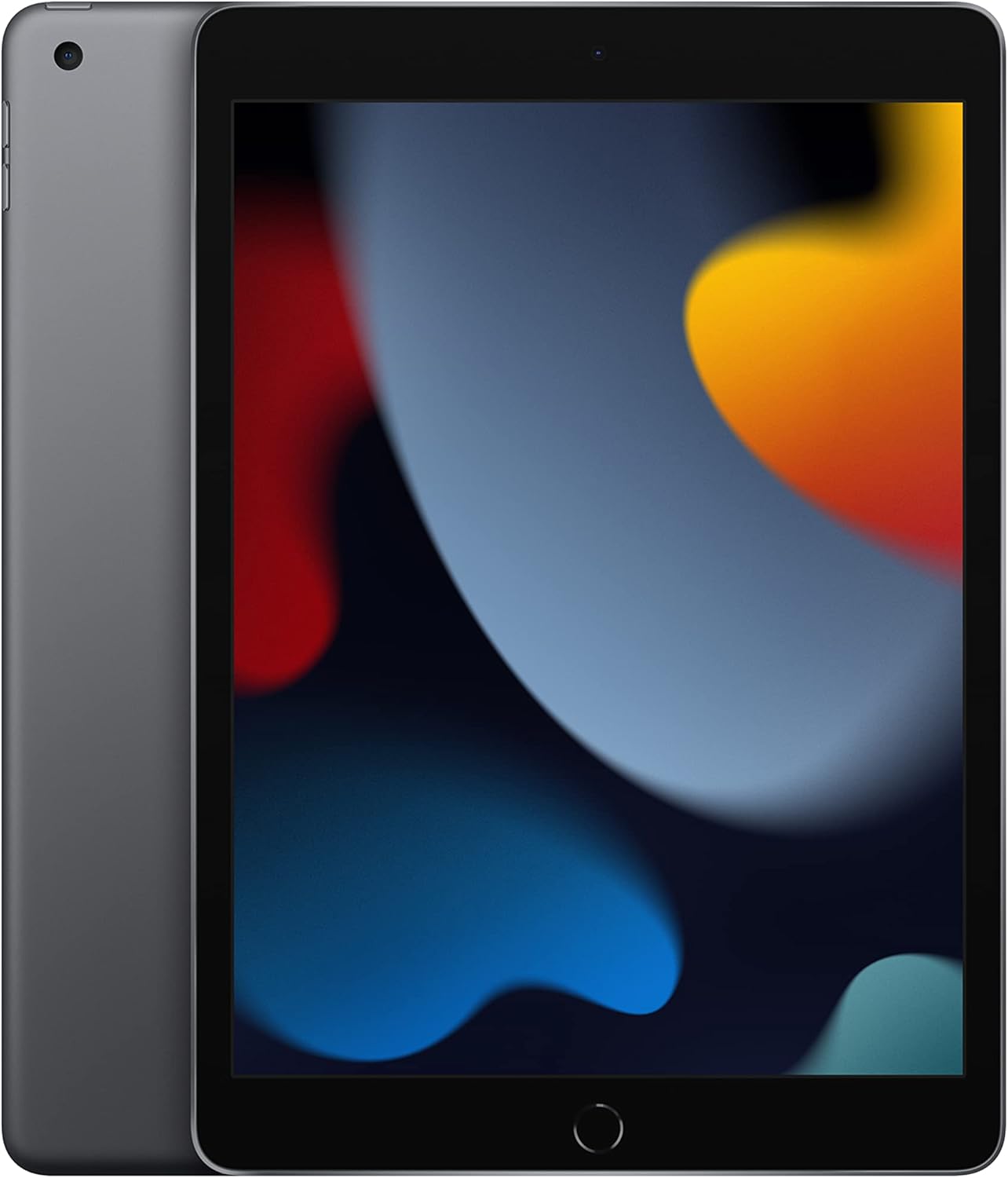
Apple iPad (9th Generation): with A13 Bionic chip, 10.2-inch Retina Display, 64GB, Wi-Fi, 12MP front/8MP Back Camera, Touch ID, All-Day Battery Life – Space Gray
This 10.2-inch Retina Display iPad with an A13 Bionic chip and 64GB storage is for casual users needing a reliable Apple tablet for media and light tasks.

Amazon Fire HD 10 tablet (newest model) built for relaxation, 10.1" vibrant Full HD screen, octa-core processor, 3 GB RAM, 32 GB, Lilac
A 10.1" 1080p tablet with an octa-core processor and 3GB RAM, designed for Amazon content consumption and light use.

Wacom Intuos Small Graphics Drawing Tablet, Includes Training & Software; 4 Customizable ExpressKeys Compatible with Chromebook Mac Android & Windows, Black
A compact Wacom Intuos with a battery-free pen and 6.0 x 3.7-inch active area, suitable for digital art beginners on Windows, Mac, or Android.