
ASUS TUF Gaming Z790-Plus WiFi LGA 1700(Intel 14th,12th &13th Gen) ATX Gaming Motherboard(PCIe 5.0,DDR5,4xM.2 Slots,16+1 DrMOS,WiFi 6,2.5Gb LAN,Front USB 3.2 Gen 2 Type-C,Thunderbolt 4(USB4),Aura RGB)
Want the best price and purchase timing?
Our AI advisor analyzes real-time pricing across all channels to find you the best deal.
AI Verdict
This is a rock-solid, no-nonsense DDR5 board for 12th to 14th Gen Intel builds, provided you don't need a PCIe 5.0 M.2 slot or BIOS Flashback.
This board delivers excellent 16+1 power delivery and four M.2 slots for a reasonable price, making it great for 13th Gen builds. The lack of BIOS Flashback makes it a risky purchase for 14th Gen buyers unless the retailer guarantees an updated BIOS out of the box. You also miss out on PCIe 5.0 storage speeds.
If you are buying a 14th Gen CPU and need guaranteed out-of-the-box compatibility, look for a Z790 board that explicitly features a physical BIOS Flashback button on the rear I/O.
Regret Score™
Low RiskLower is better — measures purchase-regret risk from real buyer complaints, review credibility, and product maturity
Issues discovered after purchase
Critically weak dimension
Amazon rating vs actual quality
Chance this product isn't for you
Pros
- 16+1 DrMOS power stages easily handle overclocked i9-13900K and 14900K processors without thermal throttling.
- Four PCIe 4.0 M.2 slots give you massive storage expansion, and three include built-in metal heatsinks.
- Includes a Thunderbolt 4 header for cases with front-panel USB4 support.
- Built-in WiFi 6E and a magnetic antenna deliver stable wireless speeds without needing a PCIe add-in card.
Cons
- Zero BIOS Flashback button on the rear I/O means you need a compatible CPU just to update the firmware.
- Lacks a PCIe 5.0 M.2 slot, limiting future-proofing for next-gen NVMe drives.
- Default BIOS settings leave the RGB lights glowing brightly even when the PC is put to sleep.
- Users frequently report XMP instability when pushing DDR5 RAM past 6800 MHz on older BIOS versions.
Dimension Scores
16+1 DrMOS power stages rated for 60A easily handle an i9-14900K under load.
Includes WiFi 6E and a Thunderbolt 4 header, but omits a crucial BIOS Flashback button.
Four PCIe 4.0 M.2 slots and plenty of SATA ports provide massive storage headroom.
The ASUS UEFI is intuitive, but forced Armoury Crate installations and XMP instability at 7000+ MHz drag it down.
Best For
- Mid-range gaming builds using an Intel Core i5-13600K or i7-14700K.
- Users who need massive storage capacity utilizing four separate NVMe SSDs.
- Builders who want built-in WiFi 6E and Bluetooth 5.3 without sacrificing PCIe slots.
Not Recommended For
- First-time builders buying a 14th Gen CPU who don't have a 12th or 13th Gen chip handy for BIOS updates.
- Extreme overclockers trying to push DDR5 memory to 7200 MHz and beyond.
Watch Out For
- No BIOS Flashback button — if your board ships with an older BIOS, you cannot boot a 14th Gen CPU to update it. You will need a 12th or 13th Gen chip just to flash the firmware.
- The dreaded yellow Q-LED light — many buyers report getting stuck on a solid yellow DRAM error light on first boot. You often have to test one RAM stick at a time in the A2 slot to get it to post.
- One of the four M.2 slots does not come with a heatsink. You need to buy an aftermarket cooler if you plan to populate all four drives with high-speed Gen 4 NVMe SSDs.
- Armoury Crate software prompts to install automatically on first Windows boot and can cause system bloat or RGB sync conflicts with Corsair or G.Skill software.
Full Specifications
| RAM | DDR5 |
| ASIN | B0BQD58D96 |
| Brand | ASUS |
| Color | BLACK |
| Series | TUF GAMING Z790-PLUS WIFI |
| Language | English |
| Platform | Windows |
| CPU Model | Core i9 |
| Processor | core_i9 |
| CPU Socket | LGA 1700 |
| Model Name | TUF GAMING Z790-PLUS WIFI |
| Item Weight | 2.91 pounds |
| Chipset Type | Intel Z790 |
| Manufacturer | ASUS |
| Memory Speed | 7200 MHz |
| Wireless Type | 802.11a/b/g/n/ac, 802.11ax |
| Processor Brand | Intel |
| Item model number | TUF GAMING Z790-PLUS WIFI |
| Compatible Devices | Personal Computer |
| Memory Clock Speed | 7200 MHz |
| Product Dimensions | 10.7 x 2.75 x 14 inches |
| Compatible Processors | 14th, 13th, 12th Gen |
| RAM Memory Technology | DDR5 |
| Item Dimensions LxWxH | 10.7 x 2.75 x 14 inches |
| Number of USB 2.0 Ports | 11 |
What Buyers Say
The lack of a BIOS Flashback button is the single biggest headache for buyers pairing this with a 14th Gen CPU, often resulting in a black screen and a dead-end build process. When it works, owners praise the heavy VRM heatsinks and stable power delivery that keeps high-end i7 and i9 chips running cool. The four M.2 slots are a massive hit for storage hoarders, though the bottom right slot lacks a metal cover. Memory training on first boot takes longer than expected, frequently triggering a yellow Q-LED light that causes momentary panic. The built-in WiFi 6E and magnetic antenna deliver excellent wireless speeds that rival hardwired connections.
“Bought this for a 14700k build and got a black screen because it needed a bios update, but there's NO flashback button so I had to buy a cheap celeron just to update the damn thing.”
Common Praise
- 16+1 power stages keep VRM temperatures well under 60°C even during heavy Cinebench runs.
- Four M.2 slots allow for massive 8TB+ storage configurations without needing PCIe adapter cards.
- The magnetic WiFi 6E antenna has a long cable and sticks easily to the top of the PC case for better reception.
- ASUS BIOS interface remains the easiest to navigate for setting custom fan curves.
Common Complaints
- No BIOS Flashback button means you are completely stuck if the board ships with older firmware and you have a 14th Gen CPU.
- Getting DDR5 RAM to run stable at 7200 MHz XMP profiles is a nightmare and often requires downclocking to 6800 MHz.
- The yellow DRAM error light frequently stays on during first boot, requiring multiple RAM reseats.
- Armoury Crate software is bloated and conflicts with other RGB control programs.
Ownership Tips
- The motherboard RGB lights stay on by default when the PC is turned off, requiring a deep dive into the BIOS ErP settings to disable.
- Boot times are noticeably slower than older DDR4 systems due to DDR5 memory training on every cold start.
- The top M.2 heatsink uses captive screws which is great, but the thermal pads are very sticky and can rip the label off your SSD if you remove it later.
Frequently Asked Questions
Does this motherboard support 14th Gen Intel CPUs out of the box?
It depends on when the specific board was manufactured. Because it lacks a BIOS Flashback button, you cannot update the BIOS without a compatible 12th or 13th Gen CPU installed first.
Does the TUF Z790-Plus WiFi have a PCIe 5.0 M.2 slot?
No. The main x16 graphics card slot is PCIe 5.0, but all four of the M.2 storage slots are limited to PCIe 4.0 speeds.
Why is my PC stuck on a solid yellow light on the motherboard?
The yellow Q-LED indicates a DRAM issue. Try removing all RAM except for one stick in the A2 slot, ensure it clicks loudly into place, and give it a few minutes to train the memory.
Can I use my old DDR4 RAM with this board?
No, this specific model only supports DDR5 memory. ASUS sells a nearly identical variant labeled 'D4' if you want to reuse your DDR4 sticks.
How do I turn off the motherboard RGB lights when the PC is asleep?
You need to go into the BIOS and enable 'ErP Ready' under the APM Configuration menu, or use the ASUS Armoury Crate software in Windows to change the shutdown effect.
Buying Guide
You need to verify CPU compatibility before buying this board. If you are building with a 14th Gen Intel processor, you must ensure the retailer is shipping a recently manufactured batch with updated firmware, or you will be unable to boot. DDR5 memory can be finicky on the Z790 platform, so stick to RAM kits explicitly listed on the ASUS QVL (Qualified Vendor List) and aim for 6000-6400 MHz for the best plug-and-play stability. Do not overpay for PCIe 5.0 SSDs, as this board will bottleneck them to Gen 4 speeds.
16+1 DrMOS Power Stages
Think of this as the highway delivering electricity to your CPU. More stages mean the power is divided into smaller, cooler lanes, preventing your motherboard from overheating when running a power-hungry chip like an i9.
No BIOS Flashback
BIOS Flashback is like a USB rescue mode. Without it, the motherboard needs a fully functioning, older-generation brain (CPU) installed just to learn how to talk to a newer-generation brain.
PCIe 4.0 M.2 Slots
This is the speed limit for your storage drives. While PCIe 5.0 drives exist, PCIe 4.0 is still incredibly fast—loading games in seconds—and keeps the motherboard price down.
Alternatives
If you need guaranteed 14th Gen compatibility out of the box, search for a Z790 motherboard with a 'BIOS Flashback' or 'Q-Flash Plus' button on the rear I/O panel. If you want to use next-gen storage, look for boards advertising a 'PCIe 5.0 M.2 slot'.
You Might Also Like

JetKVM KVM Over IP ATX Extension Board, ATX Power Control Board- Only for Jet KVM Accessories Boot from Shutdown, Crash Recovery
$0-$49This is an ATX form factor power control board designed for JetKVM accessories, enabling remote PC power state management and simultaneous front panel button use.
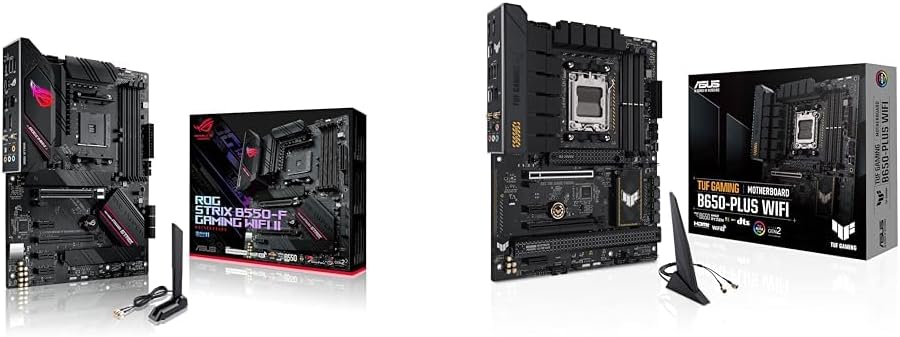
Asus ROG Strix B550-F Gaming WiFi II AMD AM4 (3rd Gen Ryzen) ATX Motherboard & TUF Gaming B650-PLUS WiFi Socket AM5 (LGA 1718) Ryzen 7000 ATX Gaming Motherboard
$150-$299This bundle offers two ATX motherboards: the ROG Strix B550-F Gaming WiFi II for AM4 Ryzen 3000/5000 CPUs with DDR4 RAM, and the TUF Gaming B650-PLUS WiFi for AM5 Ryzen 7000 CPUs with DDR5 RAM.

Game Motherboard Fit for ASROCK B650E PG-ITX WiFi B650 AM5 Motherboard Support Ryzen 7800X3D 7600/X 7950X 7700/X CPU 2xDDR5 128GB Hyper M.2 Mini-ITX
Price range unavailableThis KUETFBVC motherboard listing presents highly contradictory specifications, including a BGA 1023 socket and AMD 480 chipset, making it unsuitable for any modern Ryzen AM5 CPU.

Asus ROG Strix B550-F Gaming WiFi II AMD AM4 (3rd Gen Ryzen) ATX Gaming Motherboard (PCIe 4.0,WiFi 6E, 2.5Gb LAN, BIOS Flashback, HDMI 2.1, Addressable Gen 2 RGB Header and Aura Sync)
This is a premium-feeling AM4 board with beefy VRMs and WiFi 6E, perfect for squeezing the last drop of performance out of a Ryzen 5000 series CPU.