
KINESIS mWave Ergonomic Keyboard for Mac (White) | Mechanical Switches | Bluetooth & USB | Programmable | Backlit | macOS Modifiers & Hotkeys
Want the best price and purchase timing?
Our AI advisor analyzes real-time pricing across all channels to find you the best deal.
AI Verdict
A unibody ergonomic keyboard with low-profile Gateron mechanical switches and extensive browser-based programmability, designed for Mac users seeking comfort.
This keyboard is a strong fit for Mac users seeking an entry-plus ergonomic mechanical keyboard. Its 'wave' layout, integrated tenting, and low-profile tactile switches address common comfort issues, while the extensive programmability caters to specific workflow needs. The dual Bluetooth connectivity is a practical feature for multi-device Mac setups.
If you need a truly split design for more aggressive ergonomic adjustments or hot-swappable switches for switch customization, look for keyboards explicitly stating those features.
Regret Score™
Medium RiskLower is better — measures purchase-regret risk from real buyer complaints, review credibility, and product maturity
Issues discovered after purchase
Critically weak dimension
Amazon rating vs actual quality
Chance this product isn't for you
Pros
- The 'wave' layout and thick padded palm support promote a neutral typing posture, reducing forearm pronation and wrist extension.
- Low-profile Gateron Brown mechanical switches offer tactile feedback and low actuation force, which can decrease finger strain.
- Connects via USB-C for wired use or Bluetooth for wireless, supporting pairing with two devices for quick switching.
- Kinesis Clique software allows re-programming any key with 350+ USB actions, macros, and up to 8 layers directly from a Chrome or Edge browser.
- Dedicated macOS modifiers and hotkeys are integrated, and the white colorway matches Apple devices.
- The tenkeyless layout results in a smaller footprint, allowing for closer mouse placement.
Cons
- Backlighting is single-color white and only functions when the keyboard is connected via USB, not wirelessly.
- The keyboard uses replaceable AA batteries for wireless operation, requiring users to keep spares.
- The padded palm rest material can attract grease and sweat, appearing grubby quickly.
- The included USB-A to USB-C cable is not a modern USB-C to USB-C, which some users prefer.
- The right shift key is notably small, making it difficult to accurately hit certain characters.
Dimension Scores
Low-profile Gateron Brown mechanical switches provide tactile feedback and low force, which many users find comfortable, though some report inconsistent key feel.
Offers both a reliable USB-C wired connection and Bluetooth with the ability to pair and switch between two devices seamlessly.
The single-color white backlighting only works when wired and is reported by users as not bright enough, even in dark environments.
The plastic frame is described as 'pretty good' and 'heavy enough,' but some users note noisy stabilizers and a palm rest that quickly shows grime.
Best For
- Mac users transitioning to ergonomic keyboards from standard layouts, seeking mechanical switches.
- Individuals experiencing wrist or finger strain from traditional keyboards who need a fixed-split, tented design.
- Users who frequently switch between two Bluetooth-enabled Mac devices and need quick connectivity.
- Programmers or power users who benefit from extensive key remapping and multi-layer programming.
Not Recommended For
- Users who require full RGB backlighting or wireless backlighting for low-light environments.
- Enthusiasts who prefer hot-swappable switches for customization or a truly split keyboard design for maximum ergonomic flexibility.
Watch Out For
- Backlighting only works when plugged in via USB, and even then, it's not very bright.
- The keyboard runs on AA batteries for wireless use, meaning you'll need to have replacements on hand.
- The palm rest material gets warm and can look dirty fast due to attracting grease and sweat.
- The macOS media keys don't match the native MacBook order, which can be frustrating when switching between keyboards.
- Some users report inconsistent key feel across different keys, with some feeling mushy or leading to missed presses.
Full Specifications
| ASIN | B0DYLB3YBJ |
| Brand | KINESIS |
| Style | Mac (White) |
| Material | Plastic |
| Batteries | AA batteries required. (included) |
| Item Weight | 2.75 pounds |
| Manufacturer | Kinesis |
| Special Feature | Backlit, Ergonomic, Hotkeys and Media Keys, Programmable Keys, Wrist Rest |
| Item model number | KB150M-TAC |
| Compatible Devices | Laptop, PC, Smartphone, Tablet |
| Product Dimensions | 15.25 x 9.5 x 1.75 inches |
| Keyboard Description | Mechanical |
| Connectivity Technology | Bluetooth, USB-C |
| Recommended Uses For Product | Business |
| Keyboard backlighting color support | Single Color |
What Buyers Say
Many users are swapping out their old Microsoft Sculpt keyboards for the mWave, loving the mechanical switches and the familiar ergonomic shape. However, the backlighting is a real bummer, only working when plugged in and not being very bright. The palm rest, while comfortable, seems to be a magnet for sweat and grease, making it look dirty fast. Some folks also found the right shift key annoyingly small, leading to typing errors. The fact it runs on AA batteries for wireless mode is a bit of a throwback, too.
“Okay, so I finally ditched my old Sculpt for this, and the mechanical keys are a game-changer for my wrists, but seriously, Kinesis, why no rechargeable battery and why is the backlight basically useless unless it's plugged in? My palm rest looks like a crime scene after a day.”
Common Praise
- The 'wave' ergonomic layout and integrated palm rest feel very natural and comfortable, reducing strain.
- Low-profile Gateron Brown switches offer a satisfying tactile typing experience with reduced finger fatigue.
- The browser-based Kinesis Clique software makes key remapping and macro creation surprisingly easy and powerful.
- Seamlessly switches between two Bluetooth devices, which is super handy for multi-Mac setups.
- The tenkeyless design saves desk space while still providing essential keys and an integrated numpad layer.
Common Complaints
- Backlighting is wired-only and too dim to be truly useful in low-light conditions.
- The keyboard requires AA batteries for wireless use, which means keeping spares around.
- The palm rest material gets noticeably warm and attracts oils, looking grubby very quickly.
- The right shift key is unusually small, causing frequent mistypes for some users.
- Some keys have an inconsistent feel, with reports of mushiness or missed presses, even with the same switch type.
Ownership Tips
- You'll want to keep a stash of AA batteries if you plan on using it wirelessly, as it's not rechargeable.
- Be prepared for the palm rest to show fingerprints and oils quickly; regular cleaning will be a must.
- The small right shift key might take a significant adjustment period, or you might find yourself constantly hitting the wrong key.
- The backlighting is more of a 'feature' than a functional tool due to its wired-only nature and low brightness.
- Learning the new macOS media key layout might be a minor annoyance if you frequently switch to a native MacBook keyboard.
Frequently Asked Questions
Does the backlighting work wirelessly?
No, the single-color white backlighting only illuminates when the keyboard is connected via the USB-C cable. It does not work in Bluetooth mode.
What kind of switches does it use?
It uses low-profile Gateron Brown mechanical switches (specifically KS-33 2.0). These are tactile switches, offering a slight bump as you press them.
Can I remap the keys?
Yes, it's highly programmable using the Kinesis Clique software, which is browser-based (Chrome or Edge). You can remap any key, create macros, and set up to 8 layers.
Is it rechargeable?
No, for wireless operation, the keyboard runs on replaceable AA batteries. It does not have a built-in rechargeable battery.
Is this a truly split keyboard?
No, it features a fixed 'wave' split design in a unibody chassis. While it offers ergonomic benefits like tenting and a split key layout, the halves are not separate.
Buying Guide
When you're looking at ergonomic keyboards, it's not just about comfort; it's about how your hands and wrists are positioned to prevent strain. A 'wave' design like this one aims to keep your wrists straight and your forearms untwisted. Mechanical switches offer a different feel than standard membrane keyboards, often with more satisfying feedback and durability. Connectivity options matter too – do you need to switch between devices easily, or is a simple wired connection enough?
Low-profile Mechanical Switches
Unlike traditional mechanical switches that have a longer travel distance, low-profile switches are shorter, meaning your fingers don't have to move as far. This can reduce fatigue over long typing sessions, similar to how a shorter step is less tiring than a high step.
Fixed Split 'Wave' Layout
This design separates the keys into two distinct groups and often angles them. It encourages you to keep your hands and wrists in a more natural, neutral position, like holding your hands out in front of you, rather than forcing them flat and straight, which can cause discomfort.
Programmability (Kinesis Clique)
This lets you change what each key does, create shortcuts, or even complex sequences of actions. Think of it like customizing the controls in a video game to perfectly suit your playstyle, but for your daily work. It can significantly speed up repetitive tasks.
Bluetooth & USB-C Connectivity
Bluetooth allows you to connect wirelessly to multiple devices (like your Mac and iPad) without cables, making your desk tidier. USB-C provides a reliable, fast wired connection and is the modern standard for many devices, ensuring broad compatibility.
Alternatives
If this keyboard doesn't quite fit, consider looking for truly split ergonomic keyboards for greater adjustability, or models with hot-swappable switches if you want to experiment with different switch types.
You Might Also Like

Logitech MK270 Wireless Keyboard and Mouse Combo for Windows, 2.4 GHz, 8 Multimedia Keys, PC, Laptop, Wireless Keyboard Compact Mouse Combo - Black
This is a 2.4 GHz wireless keyboard and mouse combo with a full-size QWERTY layout and 8 multimedia keys, built for basic Windows PC tasks on a tight budget.

Logitech MK270 Wireless Keyboard and Mouse Combo for Windows, 2.4 GHz, 8 Multimedia Keys, PC, Laptop, Wireless Keyboard Compact Mouse Combo - Rose
This is a 2.4 GHz RF membrane keyboard and mouse combo with a full-size layout, best suited for basic Windows PC tasks on a tight budget.

Logitech K270 Wireless Keyboard for Windows, 2.4 GHz Wireless, Full-Size, Number Pad, 8 Multimedia Keys, 2-Year Battery Life, Compatible with PC, Laptop - Rose
This is a full-size, 2.4 GHz wireless membrane keyboard with 8 multimedia keys and a number pad, designed for basic PC and laptop use.
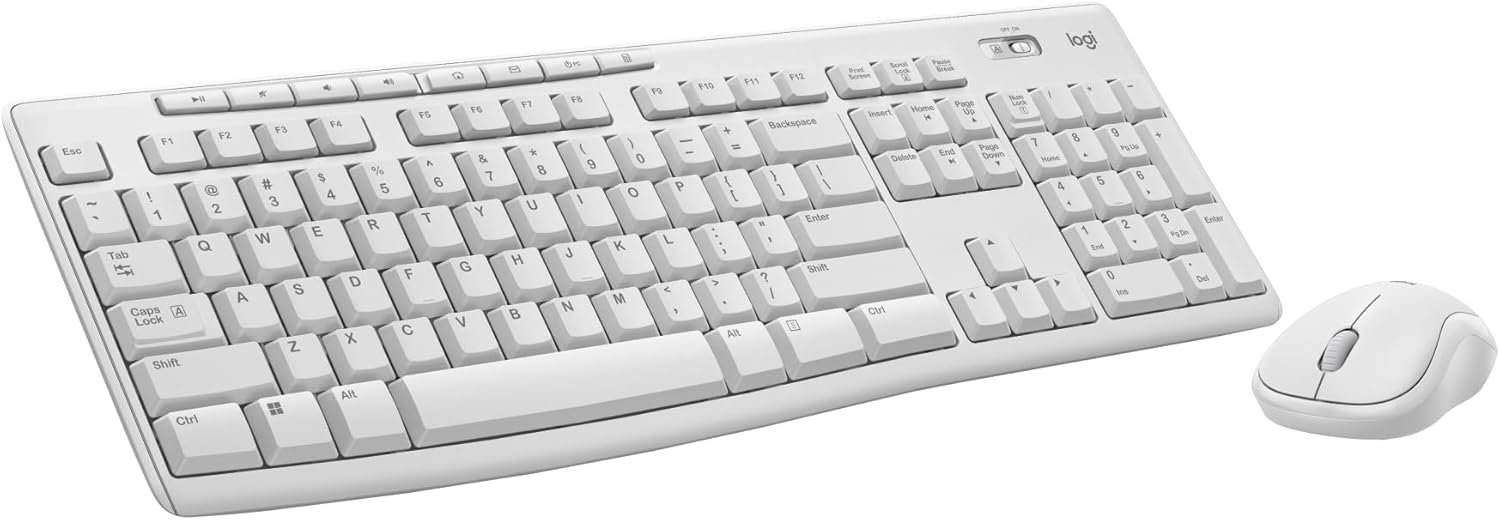
Logitech MK270 Wireless Keyboard and Mouse Combo for Windows, 2.4 GHz, 8 Multimedia Keys, PC, Laptop, Wireless Keyboard Compact Mouse Combo - White
This is a budget 2.4 GHz wireless membrane keyboard and mouse combo with a full-size layout, 8 multimedia keys, and a compact mouse, best for basic PC tasks.